At my desk, I have two computers, two screens, one microphone, one pair of headphones, one keyboard and strangely enough two mice.
I never needed to switch very quickly between the two computers, so my workflow has always been to get up (free exercise!) unplug my keyboard, microphone and headphones, plug them into the other computer, switch input manually on both monitors and bam! I'm good to go.
In recent times however, this workflow has not only started to annoy me, but also I've needed something quicker. For instance, I now sometimes have to switch just to look up something and then switch back. You might wonder why, to which my answer is why not.
Keyboard, Video, Mostly
At first, I thought, well this is easy, I'll just buy a KVM! However, one of my monitor is a fancy 360hz monitor that I use to lose at Counter-Strike.In theory they do have the bandwidth for 360hz because they can do 4k@120, but I didn't feel like spending hundreds to confirm this theory At this time, none of the affordable KVM on the market advertise support for 360hz and certain reviews mention added latency which would reduce the purpose of having a 360hz monitor in the first place.
KVMs also often run into the issue that monitors are technically disconnected when switched awaySome KVMs have a feature called EDID emulation that tries to avoid this problem, often unsuccessfully from what I've read, which is very annoying on macOS and tilling WMs in particular due to windows sometimes moving around. Wait that's exactly my setup!
Additionally, KVM with all the ports I wanted and support for two monitors (one of which 4k, the other 360hz) are absurdly expensive, sometimes reaching a few hundred euros.
But wait, I own the means of production!
I realized by scrolling through the BetterDisplay menu that it was possible to switch input sources through the software which made me remember DDC controls.
For those unaware, modern monitors can pretty much be fully controlled through software using the DDC (Display Data Channel) protocols. The typical user might use features like changing the luminosity or contrast, but the entire menu is often available.
This meant that it was possible through ddcutil (On Linux) and betterdisplaycli (On macOS) to switch both of my monitors to the input source I want through scripts. Here I go scheming.
I'll admit, it took way too many hours to get it fully working on both platforms. Most notably, on macOS I encountered an insane amount of bugs in macOS and BetterDisplay. The BetterDisplay CLI has absolutely terrible error messages, outputting simply "Failed" for every error, including just misspelling a command.
Keybinds hell
On my Linux setup using Niri, binding global shortcuts to my shell script is absolutely trivial: Mod+F1 { spawn "switch_monitor" "1"; } and I'm on my way. Works everywhere, can work even more place by allowing it to work on the lockscreen with allow-when-locked=true. Easy.
On macOS... well, it turns out you can in fact do global shortcuts natively. Using Automator, a clearly unmaintained software by Apple, you can create this sort of pipeline to run a shell script. The error messages are once again, bad, and there's some finicky things regarding PATH and what not, but nothing you can't figure out.
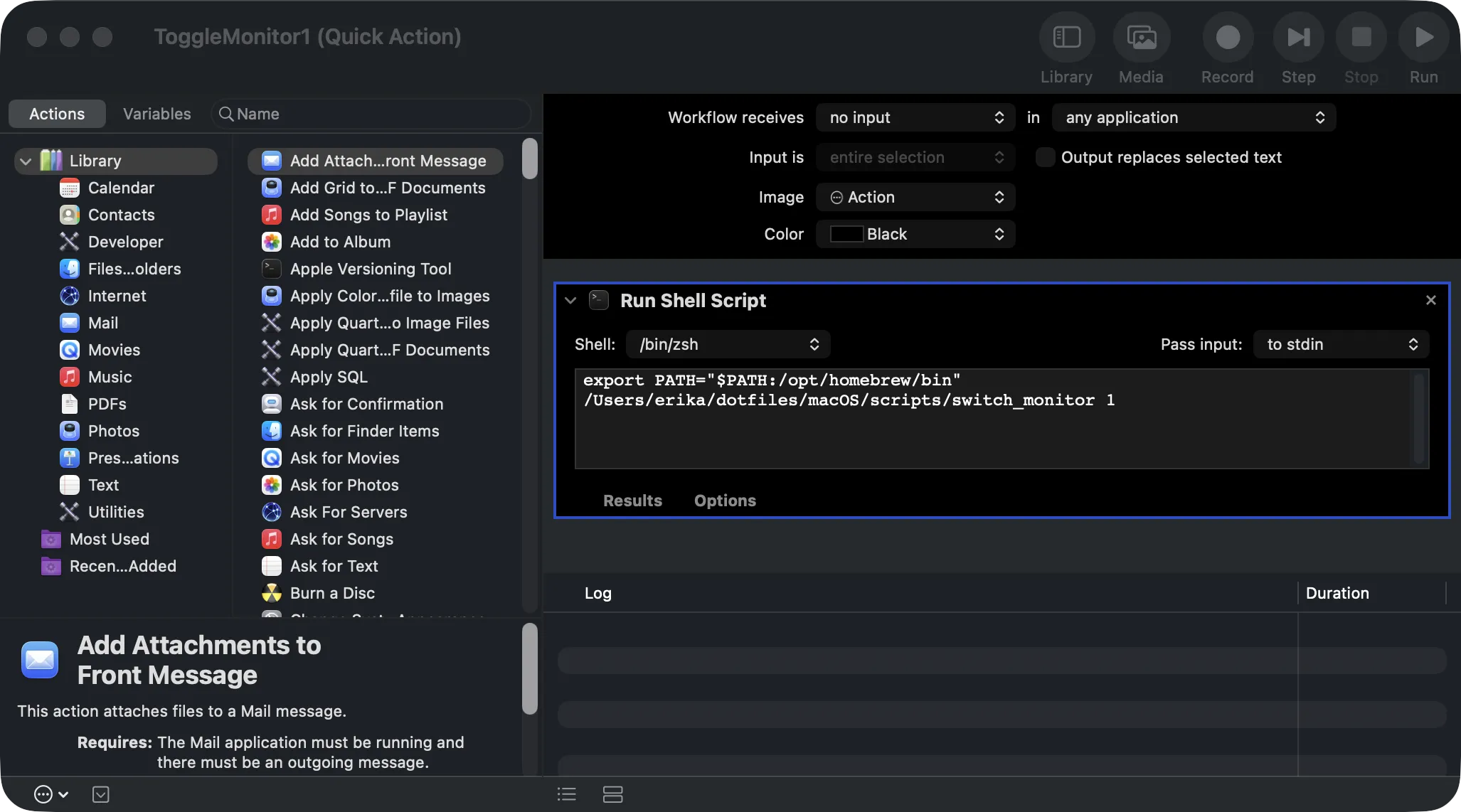
Then, using macOS settings, you can bind any shortcuts to run an Automator pipeline. And this works! ... Not really. Similar to other macOS features, the keybinds won't work in like 90% of the apps I use daily, including my code editor. I thought this could be because of conflicting binding, but no, it just doesn't work.
There's a lot of dubious global keyboard apps available on macOS, but in the open source world I found skhd (or its Zig port) to be extremely suitable for this and working perfectly.
The final configuration for the keybinds is pretty straightforward and ends up looking like this, for macOS and Linux respectively.
cmd - f1 : switch_monitor 1
cmd - f2 : switch_monitor 2
cmd - f3 : switch_monitor sync
cmd - f4 : switch_monitor set-both 1
cmd - f5 : switch_monitor set-both 2
cmd - f6 : switch_monitor toggle-splitscreen
Mod+F1 { spawn "switch_monitor" "1"; }
Mod+F2 { spawn "switch_monitor" "2"; }
Mod+F3 { spawn "switch_monitor" "sync"; }
Mod+F4 { spawn "switch_monitor" "set-both" "1"; }
Mod+F5 { spawn "switch_monitor" "set-both" "2"; }
Mod+F6 { spawn "switch_monitor" "toggle-splitscreen"; }
Two and a half screen
At this point I was happy: Mod+F1-5 to switch things, 1 and 2 for my two monitors, 3 to sync them without thinking, 4 and 5 to change both at once. Works on both OSes, it's nice and cool. But, it's still a bit cumbersome, sometimes I might be having a conversation on one computer and doing something on the other (again, don't ask), and this setup would require switching every time I get a message.
For something unrelated, I was going through the settings on one of my monitor and discovered that it supports PBP (Picture by Picture), allowing one to split a monitor in half between two inputs, like split screen in video games. Oh boy, here I go scheming again.
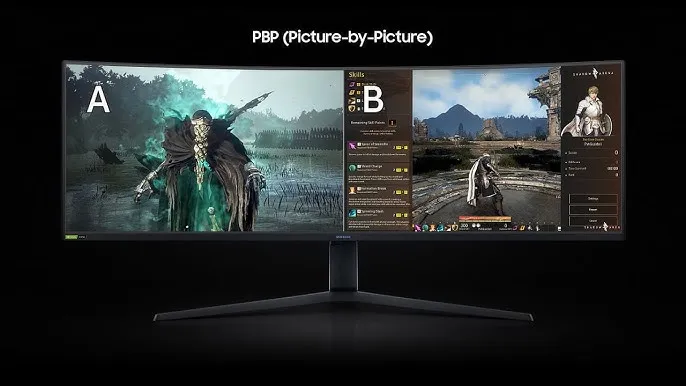
Unfortunately, this is not a standard thing and as such there's no obvious split-my-screen-fam command in either BetterDisplay or ddcutil. Searching through the internet, I ended up finding this gist from someone who reverse engineered all the codes Dell uses for their monitors.
Hooked it up into my script, added a keybind for Mod+F6 and tada! It toggles split screen. OneI am aware that in the gist it says there's a "switch_video" command, but it does not in fact just swap the videos and as far as I can tell is equivalent to switching the inputs issue I did encounter is that I wanted the right side of the split to be the same input as my second screen, but Dell puts the "primary" input on the left side, with no way to change it.
To prevent this require also swapping the inputs before enabling PBP, which does result in some slight issues and makes toggling slower (see #Unanswered points), but it does work now.
Great, you made a V, where's the KM
Well, I have two mice on my desk so the M(ouse) is taken care of. As for the K(eyboard), having a second keyboard would be annoying, especially as I have a fancy keyboard. So I bought a USB switch, which I anyway needed for my headphones, microphone, webcam, etc.
For audio (both input and output) I first looked at sound mixers, but in general they look too nerdy for me, and, ok well, sure, but I don't know, I couldn't find a simple option, they always had a million buttons and knob and stuff that looked 2spooky4me.
There's some software solutions that exists for audio, notably for output, but it's a bit clunky, there's some latency, etc. It overall works, but it's not amazing. Perhaps someone more familiar with audio could figure it out, I couldn't. Into the USB switch it goes!
Unanswered points
I'll admit that it's not perfect:
- On Linux, when I split my screen the resolution of my primary monitor does not match the logical height of my second monitor, unlike on macOS, but I don't know how to change this (apart from also changing the resolution in the script, which would make it even slower)!
- On Linux, toggling split screen is slow and sometimes doesn't work, I suspect that it's because I send two ddc commands in a row and so sometimes the toggling the split screen off one get ignored
- In general,
ddcutilis slower thanbetterdisplaycli, even with the sleep duration set to a minimum, not sure why.
- In general,
- There does not seem to be a way for keybinds to work on macOS's lock screen
- There's some sort of contrast / luminosity issue on macOS when in split screen, but it's minor
- On both Linux and macOS, a downside is that screens that are on the opposite input are still considered to be connected (naturally) and so, in split screen a window can be stuck on the second monitor.
- On Linux this is less of a problem because with Niri it's easy to move my windows across the monitors anyway. You can mitigate that on macOS by not giving every input its own space, but then you lose some other features (ex: Dock is only on input 1)
But, it does work and overall is reliable enough. Probably that I'll eventually find solutions to all these problems, or get used to them.
I've been yelling in VC "IM SPLITTING MY SCREEN" to all my friends, who admittedly haven't said anything, but I can only assume are extremely jealous of my setup.